



 💳 Способы оплаты
|
Количество
|
Стоимость
|
||
|
|
|||
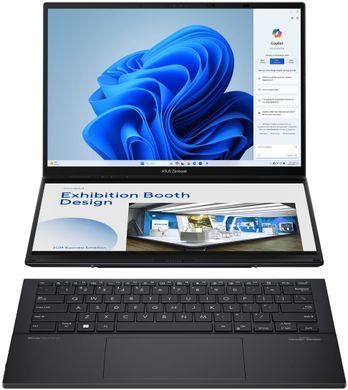
Compact with a big vision
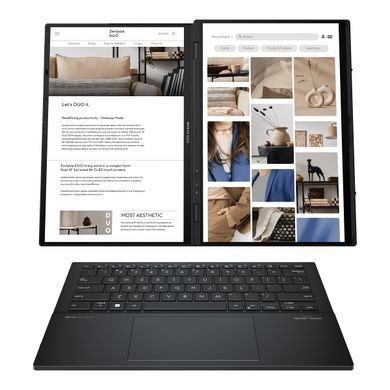
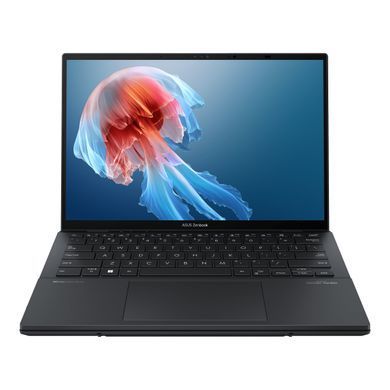
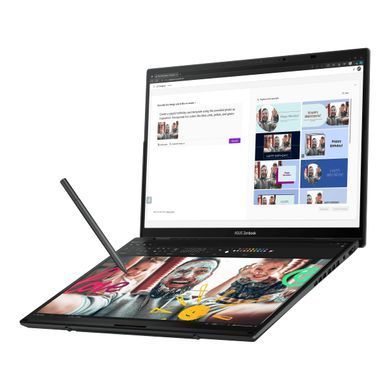
Two stunning 14-inch ASUS Lumina OLED touchscreens provide up to 19.8 inches of workspace, instantly - all in one incredibly versatile, easily portable device.
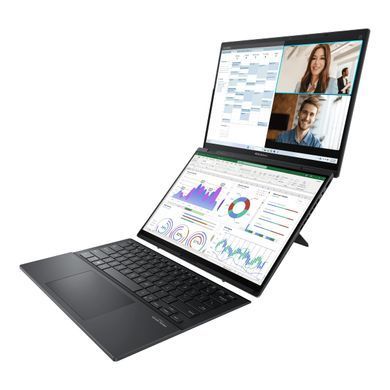
Easily charge and connect with keyboard
Pogo pin connection – power and pair in one click
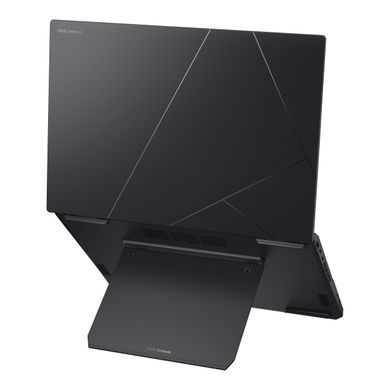
Built-in kickstand
40°-70° viewing angle, adjustable height
Elegant and stylish sleeve
Enjoy the optional 12° viewing angle, and space to store your Zenbook DUO and ASUS Pen 2.0.
Pencil drawing, on a laptop
With the sensitivity of 4096 pressure levels, ASUS Pen 2.03 (optional) allows you to accurately reproduce the finest lines and shading.
The perfect laptop for digital nomads
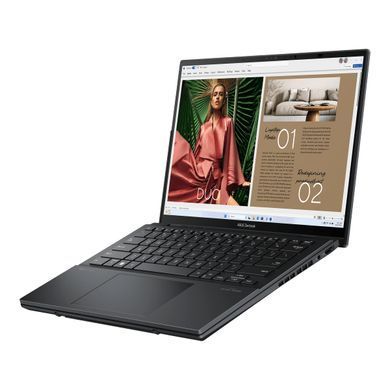
Zenbook DUO seamlessly blends the efficiency of a traditional laptop with the versatility of a multi-screen device — while still prioritizing exceptional portability.
Redefining productivity
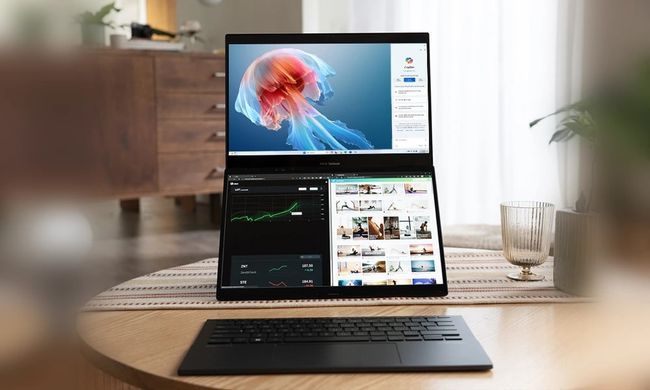
The versatile dual-screen design feels like using a desktop on the go, putting a huge workspace in ultraportable form.
Dual-screen mode (With Bluetooth keyboard)
Double your screen real estate, and reference one screen while working on another. This eliminates the need to constantly switch tabs or windows, reducing interruptions and helping you maintain your focus on the task at hand.
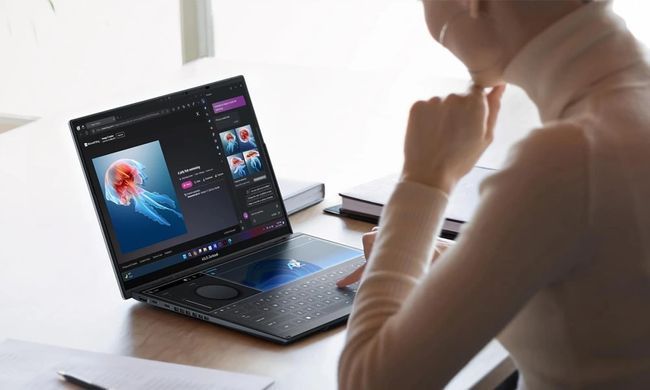
Dual-screen mode (With virtual keyboard)
The lower screen can be configured as a full-size virtual keyboard. With two screens, you can be more productive and enjoy more immersive entertainment.
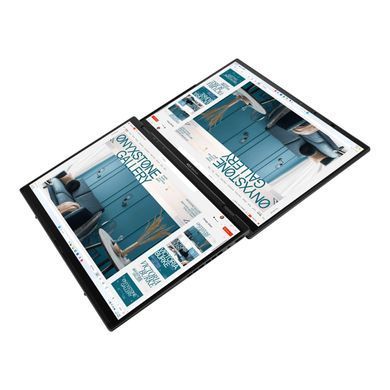
Sharing mode
Easily share content in meetings and presentations business. Just lay Zenbook DUO flat and everyone can view the screens without having to huddle around, fostering better engagement and discussion.
Smartphone-like gesture control
Delightful software features put convenience at your fingertips.
VIRTUAL KEYBOARD
Tap with six fingers to summon the full-size virtual keyboard and touchpad on the second panel.
EASY-ACCESS TOOLS
Swipe down with six fingers to access a panel of handy utilities, including handwriting, Quick Key, Control Panel and Number Key. You can also manage these with a two-finger swipe.
VIRTUAL TOUCHPAD
Tap with three fingers tap to summon the virtual touchpad on the second panel.
EASILY EXPAND TO FULL-SCREEN
Swipe outward with five fingers to maximize the current window to fill both screens.
ASSIGN WINDOWS TO YOUR PREFERRED SCREEN
Drag an app onto the App Switcher icon to launch the app, then choose its default screen.